
How do I check whether AI recommends my business?
Analytics in the sidebar, AI Visibility tab, Run check. About ninety seconds later you have a score from 0 to 100, a grid of where you appear for each question in each engine, the competitors named instead of you, and the sources the engines cited. The same tab also reads your Google Business Profile, and the Visibility Manager can fix what is missing from it in chat.
Run a check
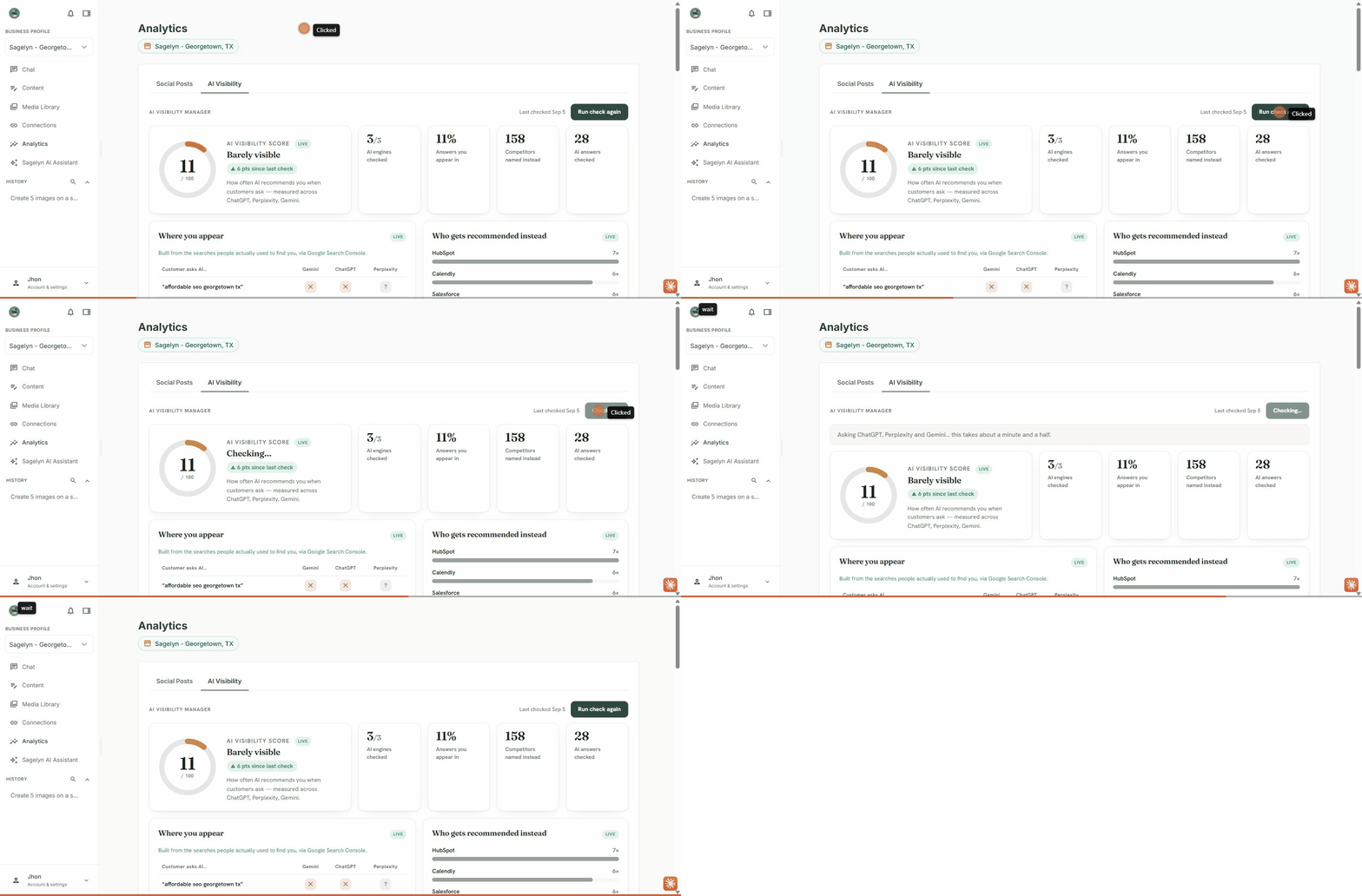
- Open Analytics in the sidebar and choose the AI Visibility tab.
- Press Run check (or Run my first check). It asks ChatGPT, Perplexity and Gemini a set of buyer questions about your category and city.
- Wait about ninety seconds. You can leave the page; the run keeps going and is still there when you come back.
Read the dashboard
- AI Visibility Score — 0 to 100, with a band: not showing up yet, barely visible, getting noticed, well established. A dash means the run couldn't be measured well enough to give a number. Under the score you will see when it was last checked and how it changed since the check before; with only one check there is nothing to compare yet.
- Where you appear — one row per question, one column per engine. Each cell is one of: recommended as a choice, named but not recommended, used as a source but not named, or absent. A muted "?" is unmeasured.
- Who gets recommended instead — the competitors the engines named in your place, ranked by how often. Empty when the run was too thin to say.
- Sources AI cites in your category — the sites the engines leaned on when answering. Your own domain is flagged if it's there.
- Visibility trend — movement since the previous check, with the date of that check. It needs two checks; after the first there's nothing to compare, and if nothing moved it says so.
Run it again
Run check again always runs fresh. Pressing it while a run is in progress joins that run rather than starting a second. The engines' answers vary between runs, so a change of a few points between two checks a day apart is noise; a change across weeks, after you've published, is signal.
Search performance
With Google Search Console connected (from Connections), the same page shows your real Google numbers, marked Live: clicks from Google, search impressions, click-through rate and average position, plus Opportunities — queries with real impressions where you rank on page two or later — and your top queries and top pages. Sections marked Preview are sample data until their source ships.
Google Business Profile
At the bottom of the tab is a Google Business Profile section. It reads the listing you connected under Connections (the Google My Business card), shows how people find it on Google, and lists what it is missing. The section only shows your listing and never changes it; fixing what is missing happens in chat, below. You do not need to run a check first, and the section is marked Live once it is showing your real Google data.
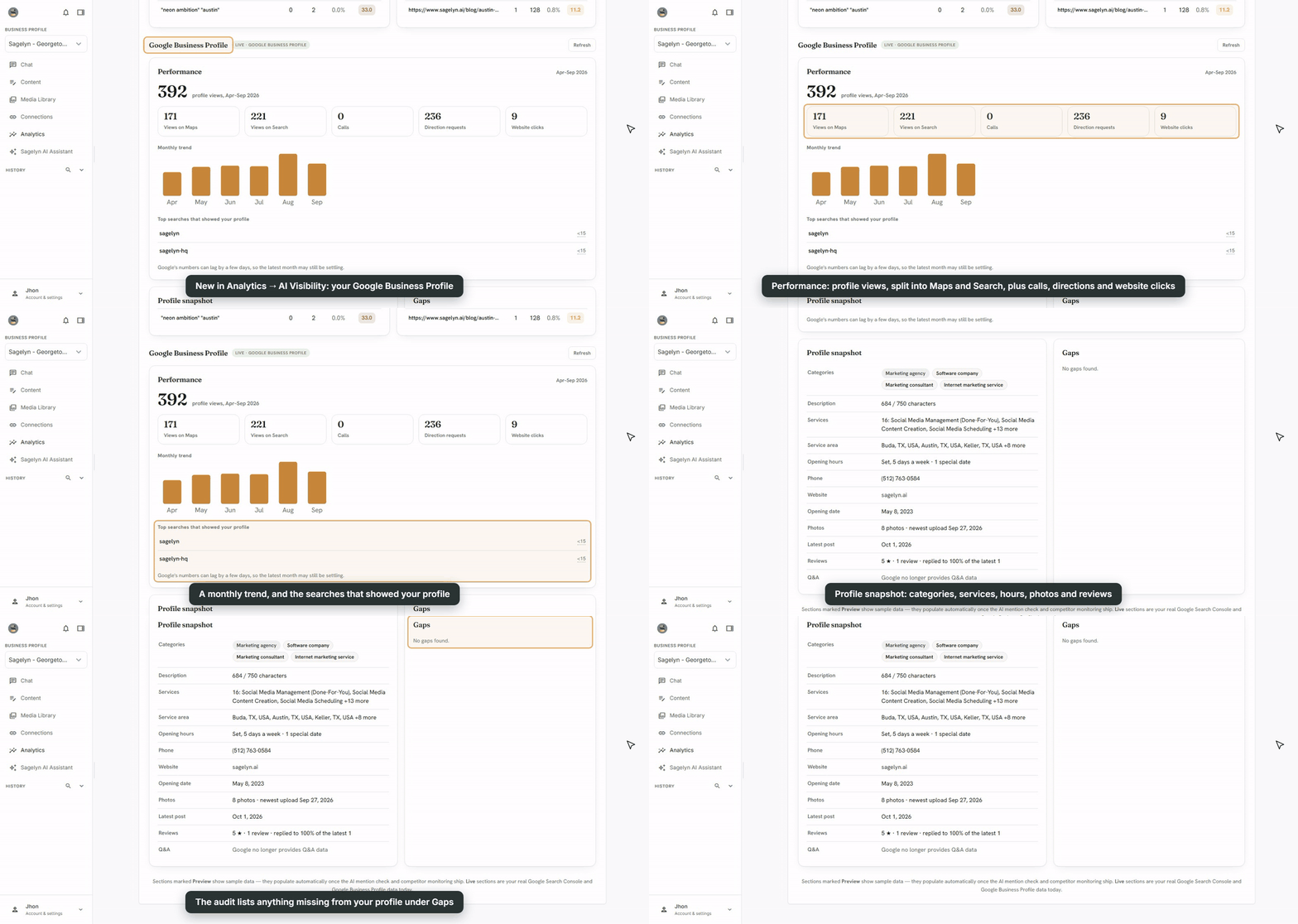
- Performance — profile views over the last six full months, split into Views on Maps and Views on Search, with Calls, Direction requests and Website clicks, a Monthly trend, and up to ten Top searches that showed your profile. Where Google only says a search was seen fewer than some number of times, you see that as <15, for example, never as a count. Google's numbers can lag by a few days, so the latest month may still be settling.
- Profile snapshot — your categories, description length out of the 750 characters Google's editor allows, services, service area, opening hours, phone, website, opening date, photos, latest post, and reviews with your average rating and the share you have replied to. Q&A says Google no longer provides Q&A data, because Google has stopped sharing it. If Google has changed part of the profile itself, or has edits waiting for its review, a note says so.
- Gaps — what the audit found missing, one line each that opens to a sentence of detail: only one category, no description, no services listed, no service area, no opening date, no website, no phone number, no opening hours, no reviews yet, reviews without a reply, no live posts or no recent ones, and no photos. It skips checks that do not apply to your kind of business, such as a service area for a storefront. If it finds nothing it says No gaps found.
A part Sagelyn could not read from Google shows a dash and says why, never a zero. Refresh asks Google again.
Fix your profile in chat
To fix what is missing, use the AI Visibility Manager in chat. Sagelyn reads your listing and your last check, then takes you through the fixes one at a time. Nothing reaches Google until you press Add to Google on that fix.
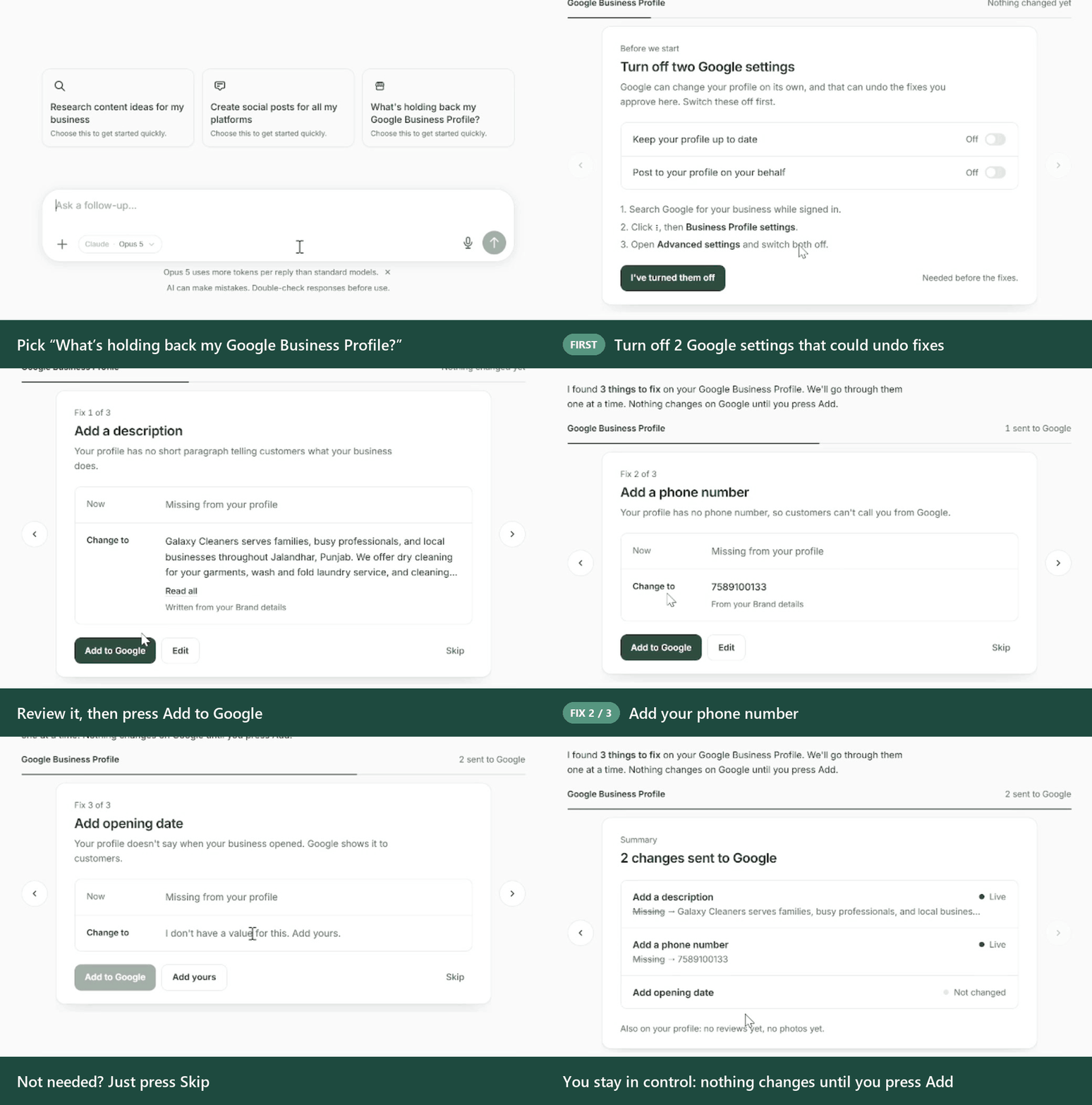
- Open your AI Visibility Manager's chat and pick What's holding back my Google Business Profile? on the welcome screen. Your Google Business Profile must be connected under Connections.
- When asked, switch off two settings on Google: Keep your profile up to date and Post to your profile on your behalf. Google can otherwise change your listing on its own and undo a fix. On Google, search for your business while signed in, click ⋮, open Business Profile settings and then Advanced settings, switch both off, and press I've turned them off. Add to Google stays disabled until you do.
- For each fix, compare Now with Change to. Press Add to Google to send it, Edit (or Add yours) to change the value first, or Skip.
- Read the summary at the end. Each change shows as Live, Reviewing or Not changed.
- What it can add — services (including ones you lost local searches for in your last check), extra categories, a description, your website, your phone number, opening hours and an opening date.
- Where the values come from — your Brand details, Google's own category list, and a description Sagelyn writes from your Brand details. Opening hours and the opening date have no source, so you set them yourself.
- What goes to your team — replying to reviews goes to your Receptionist and posting on Google to your Social Media Manager. An Ask button opens that Agent's chat with the request ready to send; if you have no such Agent, the card says so.
- What only you can do — your service area. The card lists it and you set it on Google. It also notes when you have no reviews or no photos yet.
Each fix is its own edit on Google, sent only when you press Add to Google. It then shows Live on Google; Sent. Google is reviewing it, which can take a few days; or Not changed with Google's reason and a Try again button. Sagelyn never retries on its own. The card stays in the conversation, so you can come back to it from History.
Is this on Starter?
No. The AI Visibility Manager is Pro. On Starter the tab shows an upgrade prompt.
The score shows a dash instead of a number.
The run didn't get enough coverage to stand behind a number, so it withholds one rather than show a misleading zero. Run the check again.
Which questions does it ask?
With Google Search Console connected, questions built from the searches people actually used to find you — the line under the grid says so. Without it, sample questions for your category: the kinds of things a buyer types into ChatGPT before hiring someone like you. Connect Search Console from Connections.
Why does a cell show a question mark?
That engine couldn't be measured for that question on this run. A question mark means unmeasured, never "you weren't there".
I asked the Agent about my mentions and it said the check is still being built.
Asking the Agent in chat about mentions doesn't work yet, even though the same data is on the dashboard. Use the dashboard; the chat side is being fixed.
The Google Business Profile section asks me to connect or reconnect.
Connect means the profile isn't fully connected yet. Reconnect means Google's permission for it has expired or was removed, or the connection doesn't include a location Sagelyn can read. Either button takes you to Connections: sign in with the Google account that manages the listing and pick the location. Until then Sagelyn can't read it.
Can Sagelyn change my Google Business Profile?
Yes, but only what you approve. The dashboard section only shows your listing. In chat, the Visibility Manager proposes each fix and sends it to Google only when you press Add to Google; a fix you skip stays as it is.
Why does it ask me to turn off two Google settings first?
Google can change a profile on its own: Keep your profile up to date and Post to your profile on your behalf. That can undo a fix after you approve it, so Sagelyn asks you to switch both off in your Business Profile settings on Google first. Add to Google stays disabled until you confirm.
A fix says Not changed.
Google didn't accept it. The card shows Google's reason. Press Try again after you have dealt with it, or make the change on Google yourself. Sagelyn doesn't retry on its own.
The card says there is nothing to fix.
Sagelyn builds the list from what is missing on your listing and from your last check. When the listing has nothing missing and the check shows no service you lost searches for, the card says so instead of proposing anything. Run a check in Analytics → AI Visibility to look for lost searches.